1 + 1[1] 2Learning how to play nice with others
Today you’ll experience two sides of working with git as a team. First, you’ll deliberately create and resolve a merge conflict, so you know what one looks like and how to fix it.
Second, you’ll use a feature branch for the first time: instead of everyone editing main directly, each of you does your own work in isolation and brings it in with a Pull Request. This is the standard way collaborators combine work on GitHub.
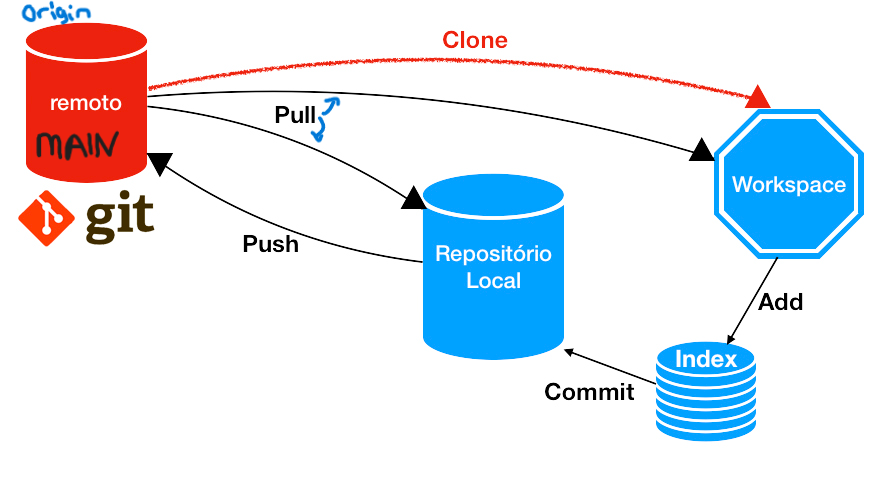
DATA385-f26 organization.When you clone a repository with git clone, it automatically creates a remote connection called origin pointing back to the cloned repository. This is useful for developers creating a local copy of a central repository, since it provides an easy way to pull upstream changes or publish local commits.
All git repositories have a main branch - this is where you have been doing the work so far.
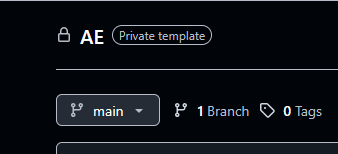
mainOnly one person acts at a time. Everyone else watches — don’t pull or render on your own — until it’s your turn.
Role 1:
Team name: line to your team’s actual name.Team name: _____________________
1 + 1[1] 2🛑 Wait for Role 1 to finish before continuing.
Role 2:
Team name: line to something else.When two people edit the same line you will get a merge conflict. The areas of conflict will show up in your code like this:
<<<<<<< HEAD

=======

>>>>>>> new_branch_to_merge_later
Think of these new lines as “conflict dividers”. The ======= line is the “center” of the conflict. All the content between the center and the <<<<<<< HEAD line is content that exists in the current branch main. All content between the center and >>>>>>> new_branch_to_merge_later is content that is present in our current file.
Role 2 cont:
<<<<<<<, =======, and >>>>>>> marker lines around it.🛑 Wait for Role 2 to finish before continuing.
Role 3:
icebreaker chunk above to something new.🛑 Wait for Role 3 to finish before continuing.
Role 4:
Everyone: pull, and confirm you all see the identical final file.
Roles 1 & 2 edited the same line, so git couldn’t guess which version you wanted, creating a conflict. Roles 3 & 4 edited different parts of the file (a chunk label, elsewhere), so git combined both changes on its own, no conflict.
The core idea behind the Feature Branch Workflow is that all feature development should take place in a dedicated branch instead of the main branch.
main branch is the official project historymain to work on featuresmain using a pull request, bringing that complete (and bug free) work back onto main
See https://www.atlassian.com/git/tutorials/comparing-workflows/feature-branch-workflow
You are going to answer a few more questions using the unvotes data from AE01. Each of you will answer one question below, on your own branch, then merge it all together in GitHub.
Read the full workflow first, make sure all team members know their assignment then start the work.
library(tidyverse)
library(lubridate)
library(scales)
library(unvotes)

unv <- unvotes::un_votes %>%
  inner_join(un_roll_calls, by = "rcid") %>%
inner_join(un_roll_call_issues, by = "rcid")main, named after your question (e.g. q1-one-country).## Team questions with your code, and adding 1-2 sentences of interpretation below it.main and the arrow is pointing from your branch going into main.main locally and pulls, so you all end up with the whole team’s questions in one document.Pick one country (check its spelling in the AE01 Appendix) and make a bar chart of its votes. Does it vote yes more often than no?
Make a frequency table of issue. Which issue has the most votes?
For the United States, calculate the proportion of yes votes on each issue. Which issue does it vote yes on the most? The least?
Filter to the United States and Canada on “Human rights”, then make a bar chart with one bar per country, filled by vote (position = "fill"). Do the two countries mostly agree?
The merge-conflict activity in Part 1 adapts material from Data Science in a Box (Unit 2, Lab 03: “Nobel laureates”) by Mine Çetinkaya-Rundel, licensed under CC BY-SA 4.0. Source: tidyverse/datascience-box.
Images and other references pull from https://www.atlassian.com/git/tutorials/